

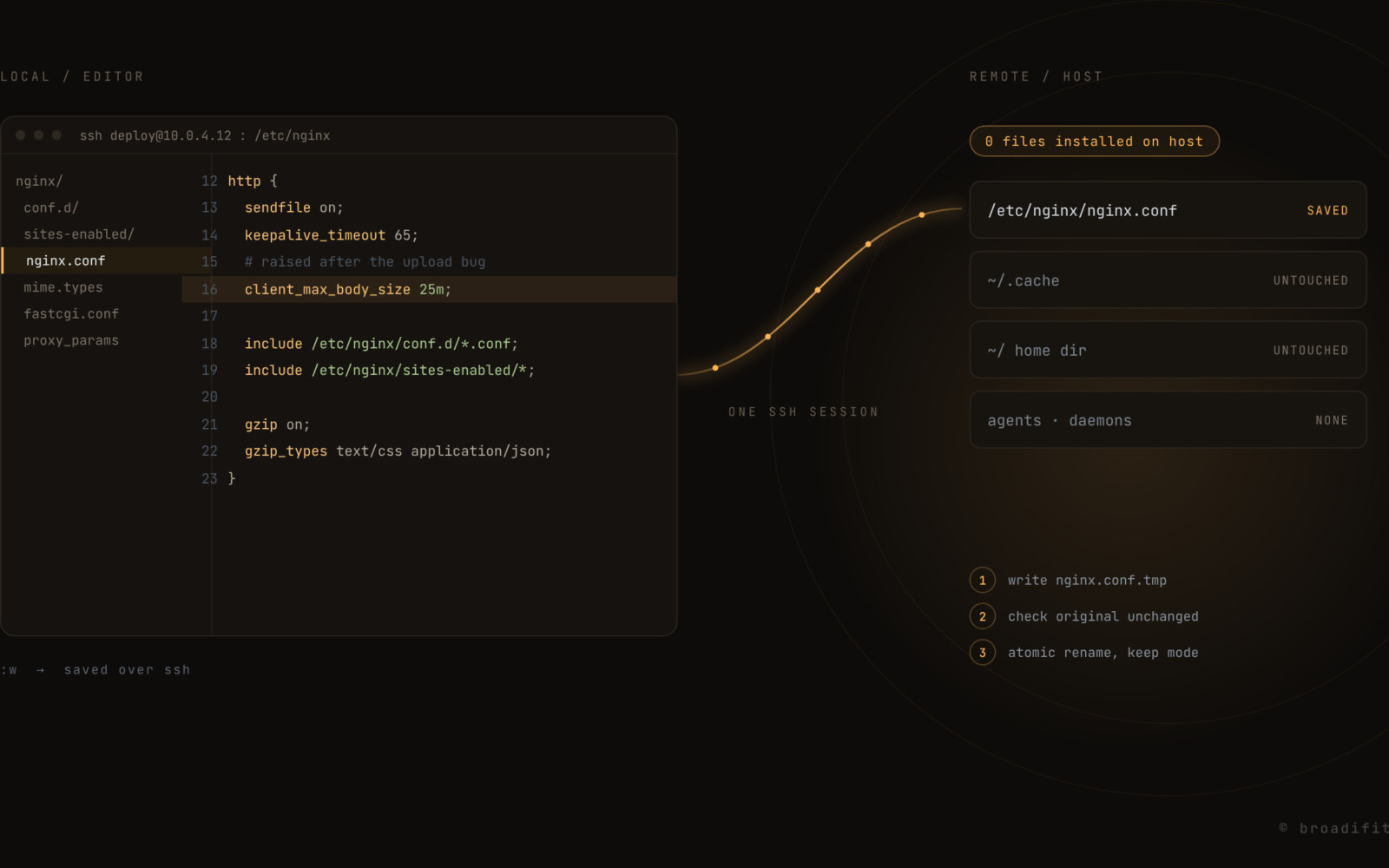
You know the moment. Something is wrong on a server, the fix is one line in a config file, and you’re staring at a terminal trying to decide how you want to edit it. Nano? Vim? Copy it down, fix it in your real editor, copy it back up? Open the whole thing in VS Code over SSH?
It sounds like a tiny decision. It isn’t, really. Every one of those options either leaves something behind on the server, or has a small way of wrecking the file you were trying to fix. I’ve been bitten by most of them over the years, so here’s how I think about it now.
Vim or nano, right there on the box
Honestly, this is still fine for a one-line change, and you should be comfortable doing it. But it gets painful fast. You’re editing in whatever version of vim the server happens to have, with none of your settings, no syntax highlighting half the time, and if your connection drops mid-edit you’re hunting for a swap file. For anything longer than a couple of lines, most people reach for something else.
A trick a lot of people don’t know: vim can edit a remote file from your own machine, using your own config, over scp. Note the double slash for an absolute path:
vim scp://deploy@10.0.4.12//etc/nginx/nginx.conf
Nice when it works. It’s also a round trip on every save, and it has the same weakness as the next option.
The scp round trip
Copy it down, edit locally, copy it back:
scp deploy@10.0.4.12:/etc/nginx/nginx.conf ./nginx.conf
# edit it in your editor
scp ./nginx.conf deploy@10.0.4.12:/etc/nginx/nginx.conf
Simple, and nothing gets installed anywhere. The problem is that the second scp doesn’t ask any questions. If a teammate (or a deploy script, or certbot) changed that file while you were editing, their change is just gone. You’ll also hit permissions immediately, since you usually can’t write into /etc as your normal user, so you end up copying to /tmp and doing a sudo mv anyway.
Mounting the server with sshfs
sshfs makes the remote folder look like a local one, so any editor just works:
sshfs deploy@10.0.4.12:/var/www/app ~/mnt/app
I liked this for years. The catch is that it depends on FUSE on your machine (on a Mac that means installing macFUSE and approving a kernel extension), and it gets weird when the connection hiccups. Editors also do their own clever things when they save, writing temp files and renaming them, and those clever things don’t always behave well over a network filesystem. Most of the time it’s fine. The time it isn’t is usually the time you’re in a hurry.
VS Code Remote SSH
This is what most people use now, and the experience is great. But it’s worth knowing what it actually does: when you connect, it installs and runs the VS Code Server on the remote machine, as your user, usually in ~/.vscode-server. On a beefy dev box, who cares. On a small VPS with 1 GB of RAM, a locked-down production server, or a box where installing things needs a ticket, it matters.
There are also requirements on the remote side. According to the VS Code FAQ, the prebuilt server needs glibc 2.28 or newer, which rules out some older distributions that are still very much alive in the wild. There’s a workaround, but VS Code itself calls it an unsupported scenario.
None of this makes it bad. It just means it’s a development tool, and I don’t love pointing development tools at servers I’m only visiting.
What a safe save actually means
Here’s the part that took me too long to appreciate. The way the file gets written matters as much as which editor you use. A save that writes straight over the original can leave you with a half-written config if the connection drops at the wrong moment. A save that doesn’t check whether the file changed since you opened it will happily overwrite someone else’s fix.
A careful save does three things:
- Writes the new content to a temporary file next to the original.
- Checks that the original hasn’t changed since you opened it. If it has, it stops and tells you.
- Renames the temp file over the original. A rename on the same filesystem is atomic, so the file is either fully old or fully new, never half of each. And it keeps the original permissions.
You can do this by hand on the server when it matters:
f=/etc/nginx/nginx.conf
before=$(sha256sum "$f")
sudo cp -p "$f" "$f.edit"        # -p keeps mode and owner
sudo nano "$f.edit"
sudo nginx -t                     # or whatever check fits the file
[ "$(sha256sum "$f")" = "$before" ] \
  && sudo mv "$f.edit" "$f" \
  || echo "file changed while you were editing, not saving"
(For nginx you’d validate the edited copy before swapping it in, but you get the idea.) It’s a bit of ceremony, and that’s exactly why nobody does it at 2am.
The quick comparison
| Approach | Installs anything on the server? | Safe if the file changed? | Good for |
|---|---|---|---|
| vim / nano on the box | No | Mostly | One-line fixes |
| vim scp:// | No | No | Small edits, your own config |
| scp round trip | No | No | Rare, careful edits |
| sshfs mount | No (FUSE needed locally) | Depends on the editor | Browsing and light editing |
| VS Code Remote SSH | Yes, a server in your home dir | Yes, while connected | Real development on dev boxes |
A tool that does the careful part for you
If you want this without the ceremony, have a look at TerCTL, an open-source desktop SSH client built by Rakesh and Sagar. Its remote editor opens a server folder with a file tree, tabs and syntax highlighting over the same SSH connection as your terminal, and the base editor installs nothing on the host. Saves go through the temp file and atomic rename dance above, keep the file mode, and refuse to overwrite a file that changed after you opened it. It’s MIT licensed, has no accounts or telemetry, and runs on macOS, Windows and Linux. The code is on GitHub if you want to see how the saving works, and they are happy to hear where it falls short.
But use whatever you like. The point is the habit, not the tool.
A few rules I stick to
- If the change matters, it belongs in git and your deploy process. Editing on the server is for the moments in between, and you write it down afterwards.
- Validate before you swap.
nginx -t,sshd -t,visudo -c, a YAML linter, whatever exists for that file. - Never overwrite blind. Either check the file hasn’t changed, or use a tool that does.
- Prefer tools that leave the server the way you found it, especially on boxes you don’t own.
- Keep a copy.
cp -p file file.baktakes one second and has saved me more than once.
We wrote about a related idea, putting safety checks where they can’t be skipped, in production safety is an architecture decision. And if you’re curious what else we build in the open, it’s all on our open source page.
